 webpins
How to make a photo slideshow for free, with no app
By webpins.net, updated on
To show the photos of a trip to your family, play photos at a birthday or leave a screen running at an event, you do not need to make a video or install a program. A slideshow in your browser does it: you choose the photos, the order and how long each one stays on screen, and press play.
First: choose and put in order
A good slideshow is shorter than you think. Thirty well-chosen photos hold attention better than three hundred. Put the photos for the show in an album just for the slideshow: that way you leave the rest of your organization alone and can play it again whenever you like.
Then decide the order. To tell a story, such as a trip or a baby's first year, the order the photos were taken in is the most natural. For a background screen at a party, random order keeps it lively.
Step by step in webpins
webpins is a free photo gallery, with no sign-up and no ads, that works in the browser on your computer and your phone. Your photos stay on your device; nothing is sent to the internet.
- Add your photos. In Add photos, choose the files or drag them onto the page.
- Create an album for the slideshow in Albums and bring the photos to it: hover over a photo and choose Save, or select several and drag them onto the album.
- Choose the order. Open the album and, in the sort button, choose Photo date for the order they were taken in, Name (A–Z) for an order you control through the names, or Random to shuffle. The slideshow follows the gallery's order.
- Open the first photo with a click.
- Set the timing. In the clock button, choose how many seconds each photo stays on screen (2, 3, 5, 10, 15 or 30, or type another value) and tick Start over after the last photo if you want the slideshow to run nonstop.
- Start. Tap play or press Space. On a computer, use the Full screen button and press H to hide the controls and leave only the photo.
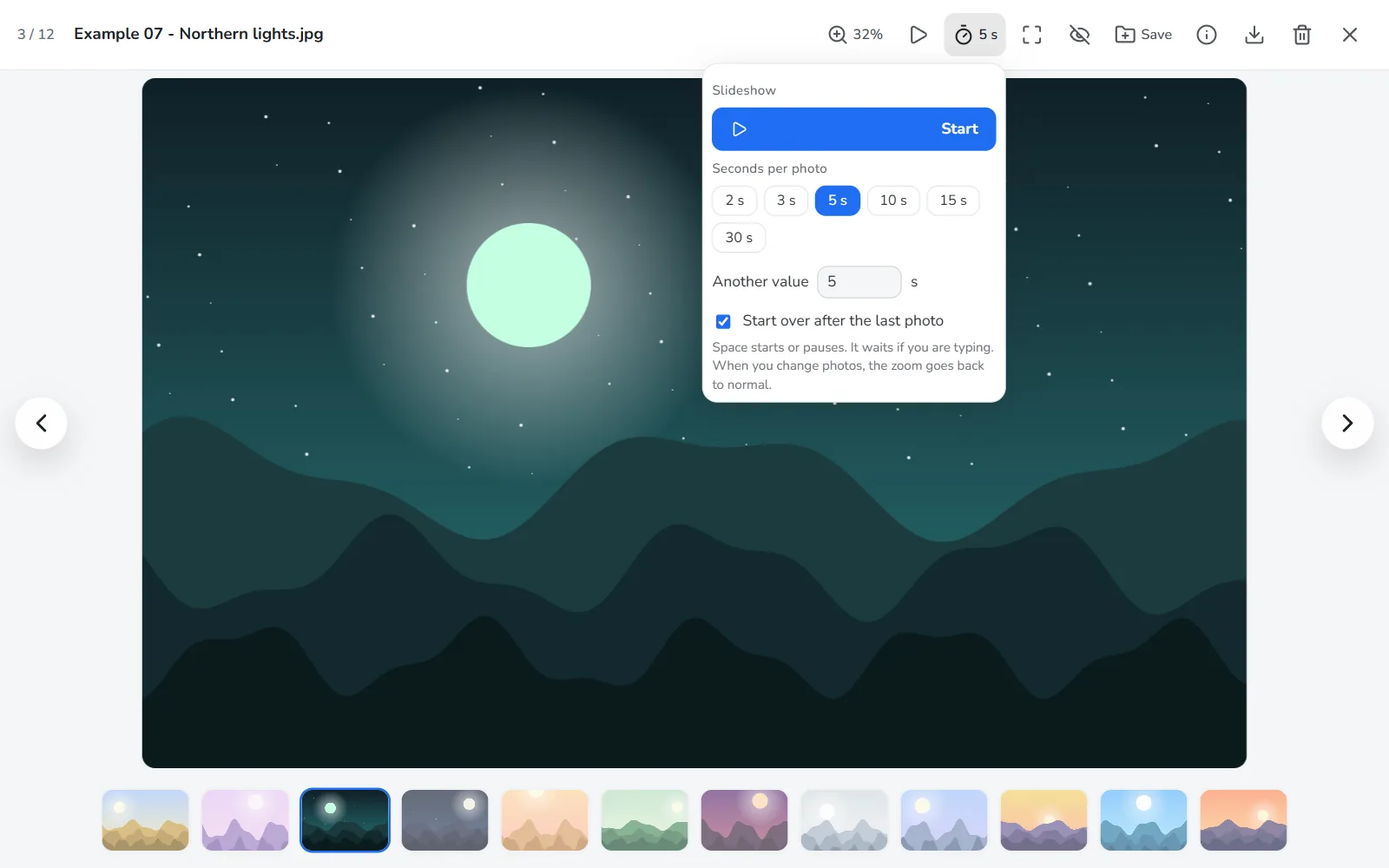
During the slideshow, the arrow keys go to the previous or next photo, and Space pauses and resumes. If someone wants to see a detail, you can zoom; when the next photo comes, the zoom goes back to normal. To add a caption that explains a photo, press I.
How long per photo?
| Situation | Suggested time |
|---|---|
| Showing photos to someone, talking about them | No timer: move with the arrows |
| Telling the story of a trip or an event | 5 seconds |
| Photos full of detail, large groups | 10 seconds |
| Background screen at a party or an event | 15 to 30 seconds, starting over at the end |
To show on a TV or at an event
- Connect the computer to the TV with an HDMI cable, or mirror the screen with your browser's or system's cast feature, and use full screen.
- Do not rely on the venue's internet. The photos are on your device, so the slideshow runs offline. To open webpins without internet too, install it as an app beforehand.
- Test first. Play the whole slideshow once at home, on the real screen, to check the timing and that no photo was left out.
- Turn off the screen saver on the computer during the event, so the screen does not go dark halfway.
Other options
If you want music, themes and elaborate transitions, the systems' photo apps do that: on a Mac, the Photos app makes slideshows with a theme and music; in Google Photos, you can create animations and movies from your photos. They are good for a video you will keep or send. To simply show your photos now, on screen, with no account and nothing uploaded, a browser slideshow is quicker.
Frequently asked questions
Can I make a photo slideshow without installing anything?
Yes. In webpins, the slideshow runs in the browser: you open the site, add your photos, open the first one and press play. No account and no program needed.
Does the slideshow work on a phone?
Yes. On a phone, the play and timing buttons are in the viewer, as on a computer. Turn the phone sideways so landscape photos fill the screen.
How do I make the slideshow loop?
In the slideshow panel, tick Start over after the last photo. It goes back to the first photo and keeps going until you pause it.
Can I add music to the slideshow?
Not in webpins: the slideshow shows only the photos. If music matters, play it from another device or app, or use an app that makes videos with music, such as Photos on a Mac.
Sources
- Apple: create slideshows in Photos on Mac
- Google: make creations with Google Photos (animations, movies and collages)
- MDN: full screen in web browsers
About this guide: written by the people who make webpins.net. What it says about webpins was checked on the site itself on the date of the last update; for the other services, what each of them states applies (see the sources above). Spotted something out of date? Write to hello@webpins.net.
Make your slideshow now: open the gallery with no sign-up, and try it with the sample photos.
Open webpins