 webpins
Where to store photos safely (and for free)
By webpins.net · Updated on
There is no perfect place to keep photos: each option protects against one kind of problem and leaves another out. What really protects them is having your photos in more than one place. This guide compares the most common free options and shows a combination that works without paying anything.
The rule for any option
Backup professionals use the 3-2-1 rule: three copies of your photos, on two different kinds of storage, with one of them away from home. For personal photos, a simple version covers almost everything: two copies, in two places that do not fail together. Your phone and an external drive, for example, or your computer and the cloud.
A single copy, however reliable it looks, is not a backup. A stolen phone, a drive that stops working, a locked account, browser data cleared: each place has its own way of failing, and the second copy is there for that day.
The options, one by one
A cloud service (Google Photos, iCloud, OneDrive)
Your photos go to the company's servers and show up on all your devices. It is the most convenient option: the backup happens by itself.
- For: automatic, syncs between devices, survives a lost phone.
- Against: it needs an account, and the free space is small for a lifetime of photos. Google gives 15 GB shared between Photos, Gmail and Drive; iCloud and OneDrive start at 5 GB. Your photos stay on the company's servers, under its rules.
An external hard drive or SSD
A drive you plug into your computer and copy your photos to from time to time.
- For: lots of space for a one-off price, with no subscription and no internet. Nobody but you has access.
- Against: it depends on you remembering to copy, and the drive can fail or get lost. Keep it away from the computer: the same accident should not take both.
A USB stick or memory card
Good for carrying photos from one place to another, or for an extra copy of the most important ones. They are not made to be your only archive of years of photos: they are easy to lose and were not designed to keep data for a long time unused.
Your own computer
A well-organized folder on the computer is where many people keep everything. It works, as long as it is not the only place: if the computer breaks, is stolen or is wiped, the photos go with it.
The browser, with webpins
webpins is a gallery that keeps your photos in the browser itself, on your device. It needs no account, is free with no ads, and your photos do not go to the internet. You organize them in albums, search by name and caption, and can put a password on your most personal albums.
- For: full privacy, no sign-up, works without internet, and the space is your device's.
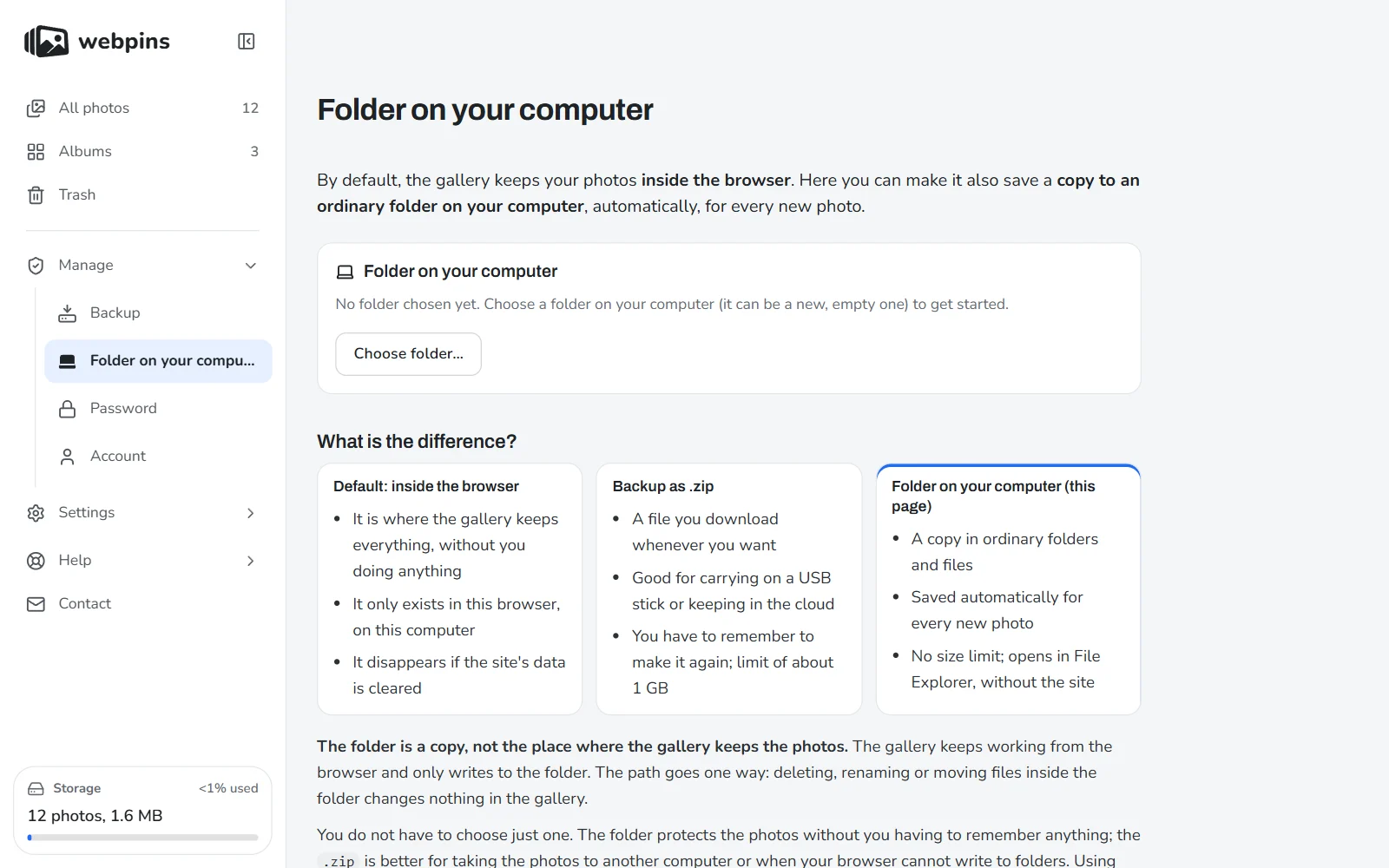
- Against: like any single place, it needs a second copy. If the browser's data is cleared, the photos are gone. That is why the gallery has a backup to a
.zipfile, or automatic saving to a folder on your computer.
Comparison
| Where | Cost | Who has access | The main risk |
|---|---|---|---|
| Cloud | Free up to a quota; then a subscription | You and the company that keeps them | A lost account or a full quota |
| External drive or SSD | A one-off price | Only you | The drive failing or getting lost |
| USB stick or card | Low | Only you | Losing it |
| Computer | Nothing extra | Whoever uses the computer | The computer breaking or being wiped |
| Browser (webpins) | Free | Only you, on your device | The browser's data being cleared |
A combination that works, for free
- One place to see and organize. It can be your phone's gallery, a folder on your computer or webpins, where your photos are kept in albums and away from servers.
- A second copy somewhere else. An external drive you update every month, or a webpins
.zipbackup kept on a USB stick. On a computer, with Chrome or Edge, webpins can save every new photo to a folder by itself. - A date on the calendar. A forgotten backup protects nobody. webpins reminds you when there are photos with no copy; for the rest, a monthly reminder is enough.
With that, no single problem takes your photos: if one place fails, the other is there.
And your most private photos?
Documents, intimate or family photos deserve more than a plain folder. Use a password: on your phone, the Hidden album (iPhone) or the Locked Folder and Secure Folder (Android); on your computer, a password-protected archive; in the browser, a password-protected album in webpins, encrypted on the device itself. The guide how to password protect photos shows each way, step by step.
Frequently asked questions
What is the safest place to store photos?
None on its own. The safest is to have two copies in different places, such as your computer and an external drive, or your phone and the cloud. For privacy, prefer places only you can access: a drive of your own or your device's browser.
Can I store photos for free, with no limit?
Cloud services limit their free space. With no account limit, there is only the space of your own devices: your computer, an external drive, or the browser in the case of webpins, which uses the space the browser allows on your device.
Can other people see my photos in the cloud?
Cloud services protect photos with passwords and encryption, but they sit on the company's servers, under its own privacy policy. If you would rather no company kept your photos, keep them on a drive of your own or in your browser.
Is a USB stick safe for storing photos?
As an extra copy, yes. As the only place, no: it is easy to lose and was not made to keep data for years unused. Use it together with another copy.
About this guide: written by the people who make webpins.net. What it says about webpins was checked on the site itself on the date of the last update; for the other services, what each of them states applies. Spotted something out of date? Write to hello@webpins.net.
Organize and protect your photos: open the gallery with no sign-up, and try it with the sample photos.
Open webpins