 webpins
How to password protect photos: on your phone, computer and browser
By webpins.net · Published on
Want some photos to open only with a password? There are three ways, and each protects against something different: your phone's own, your computer's, and a password-protected album in the browser. This guide shows each one step by step, and when to use which.
Quick answer:
- On your phone: use the iPhone's Hidden album or Google Photos' Locked Folder, which open with the phone's unlock.
- On your computer: keep the photos in a password-protected
.7zfile (Windows) or an encrypted disk image (Mac). - In the browser: put the photos in a webpins album and protect it with a password of its own, with nothing to install.
1. On your phone
iPhone and iPad
The Photos app has a Hidden album that stays locked with Face ID, Touch ID or the device passcode (since iOS 16).
- Open the photo (or select several), tap ⋯ and choose Hide.
- In Settings › Apps › Photos (on older versions, Settings › Photos), keep Use Face ID (or Touch ID / passcode) turned on.
- The photos leave your library and only show in the Hidden album, under Utilities, after unlocking.
Android
In Google Photos, the Locked Folder keeps photos that only open with the phone's screen lock (PIN, pattern or fingerprint). It is under Collections (on older versions, under Library); when you set it up, you choose whether it is backed up or not. Samsung phones also have Secure Folder, which sets apart photos and apps behind a password of their own. The names may vary from one phone to another.
What it protects against: someone who picks up your phone already unlocked and opens the gallery. Watch out: the password is usually the phone's own, so anyone who knows your PIN opens the photos too; and check whether these folders are in your phone's backup or not.
2. On your computer
Windows: a password-protected archive (7-Zip)
Windows can't put a password on an ordinary folder, but 7-Zip, which is free, makes an encrypted archive.
- Install 7-Zip, right-click the photo folder and choose 7-Zip › Add to archive…
- Keep the format as 7z. Under encryption, type the password twice, keep AES-256 and tick Encrypt file names, so not even the photos' names show.
- Check that the archive opens with the password, and only then delete the original folder.
Watch out: to see the photos you have to extract them, and the extracted copies are unprotected until you delete them again.
Mac: an encrypted disk image
- Open Disk Utility and choose File › New Image › Image from Folder…
- Pick the photo folder, choose 256-bit AES encryption and set the password.
- For the format, choose read/write if you want to add photos later. The
.dmgfile opens as a disk after the password; when you eject it, it locks again.
What it protects against: anyone going through the files on your computer. It is a good way to store old photos, but not handy for viewing and organizing them every day.
3. In the browser, with a password-protected album
In webpins your photos are kept in the browser itself, and each album can have its own password. The album's photos are encrypted with AES-256 right there, on your device, and nothing is sent to the internet. Unlike a .7z, you view and organize the photos directly, without extracting loose copies.
- Create an album and put in it the photos you want to protect.
- In the menu, open Manage › Password and click Protect with a password… next to the album.
- Type the password, repeat it, tick that you understand it cannot be recovered, and confirm.
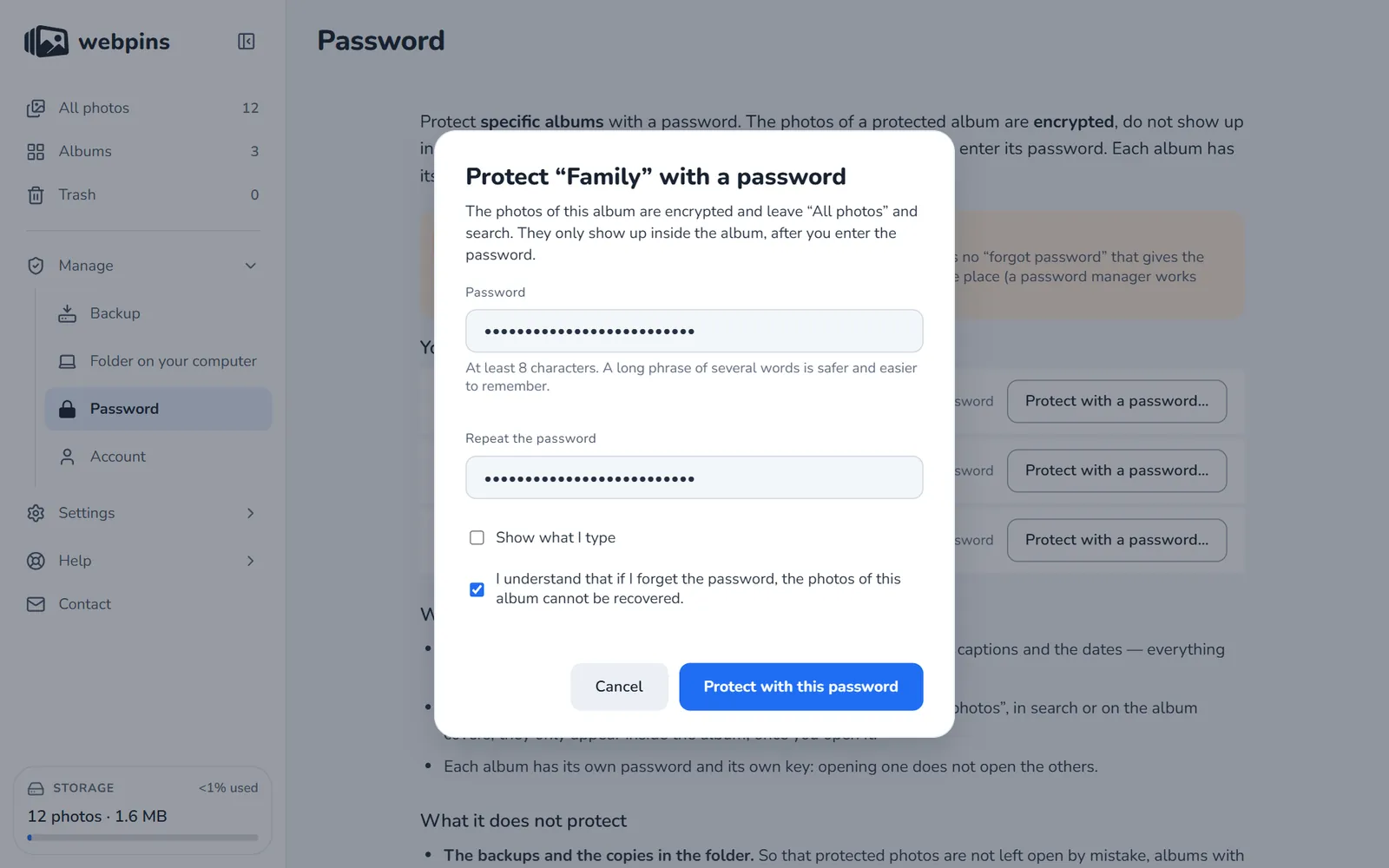
After that, the photos leave “All photos” and search, and the album only opens with the password. It locks again when you close the tab and, if you like, after a time without use.
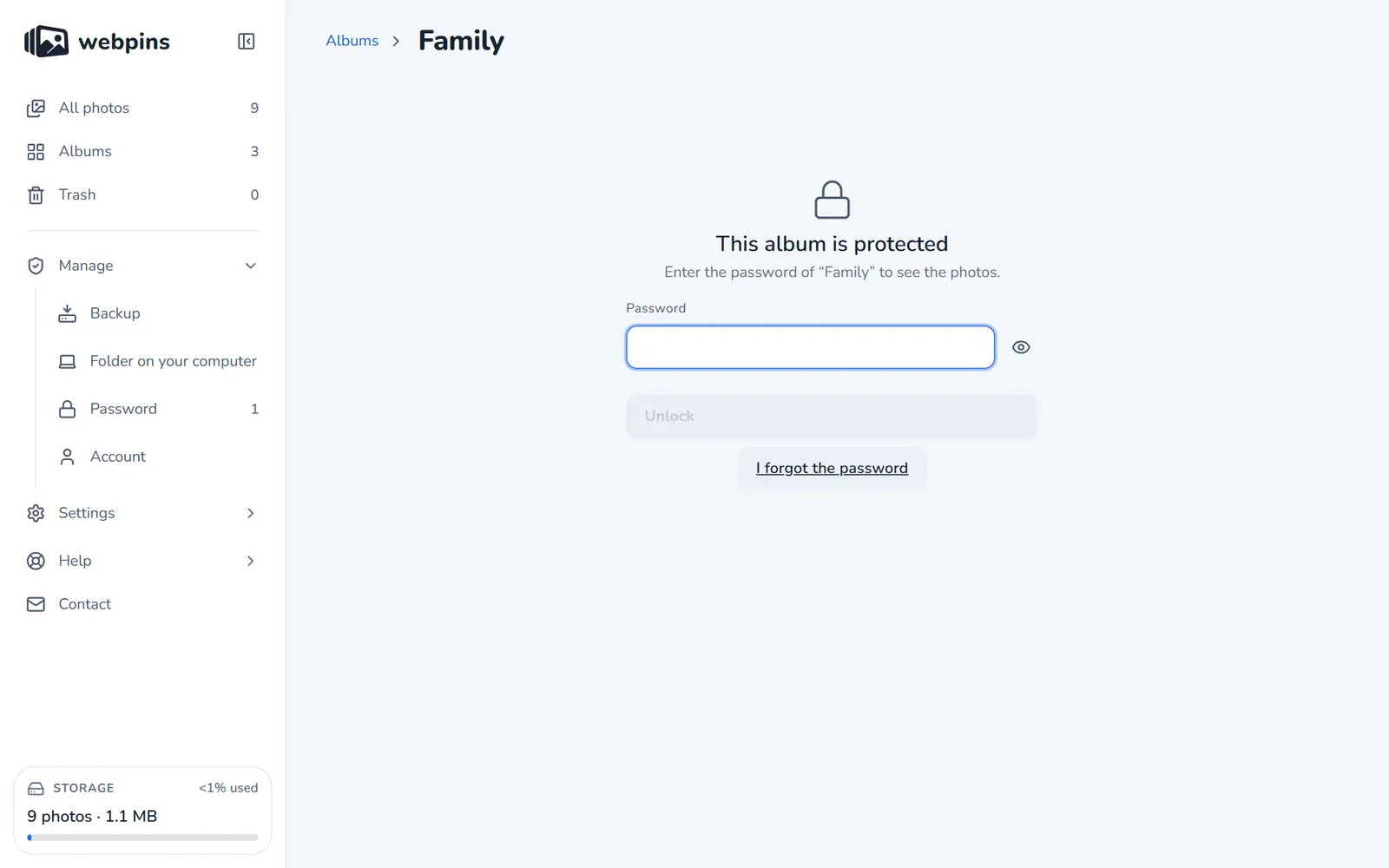
The full guide to the password-protected album explains in detail what it protects and what it does not.
Which one to choose
| Way | Good for | Watch out |
|---|---|---|
| Hidden / Locked Folder | Everyday photos on your phone | Uses the phone's own unlock |
.7z or disk image | Storing old photos on a computer | To view, you have to open or extract |
| Password-protected album in webpins | Viewing and organizing protected photos, with nothing to install | A forgotten password cannot be recovered |
Sources
- Apple: hide photos with the Hidden album
- Google Photos: Locked Folder
- 7-Zip, official site
- Apple: create a disk image with Disk Utility
Common mistakes
- Hiding is not protecting: renaming a folder or marking it hidden puts no password on anything; anyone finds the photos with a search.
- A short password: a long phrase of several words is safer, and easier to remember, than one word with symbols.
- Forgetting the password: with real encryption, nobody can recover it. Keep it in a password manager.
- No copy: protected photos disappear too if the device breaks. Make a backup before protecting them.
About this guide: written by the maker of webpins.net. The phone and computer steps follow the official documentation from Apple, Google and 7-Zip (see the sources above); the browser steps were checked on webpins itself. Spotted something out of date? Write to hello@webpins.net.
Want to try the password-protected album? Open webpins, use the sample photos and add a password to a test album. No sign-up needed.
Open webpins